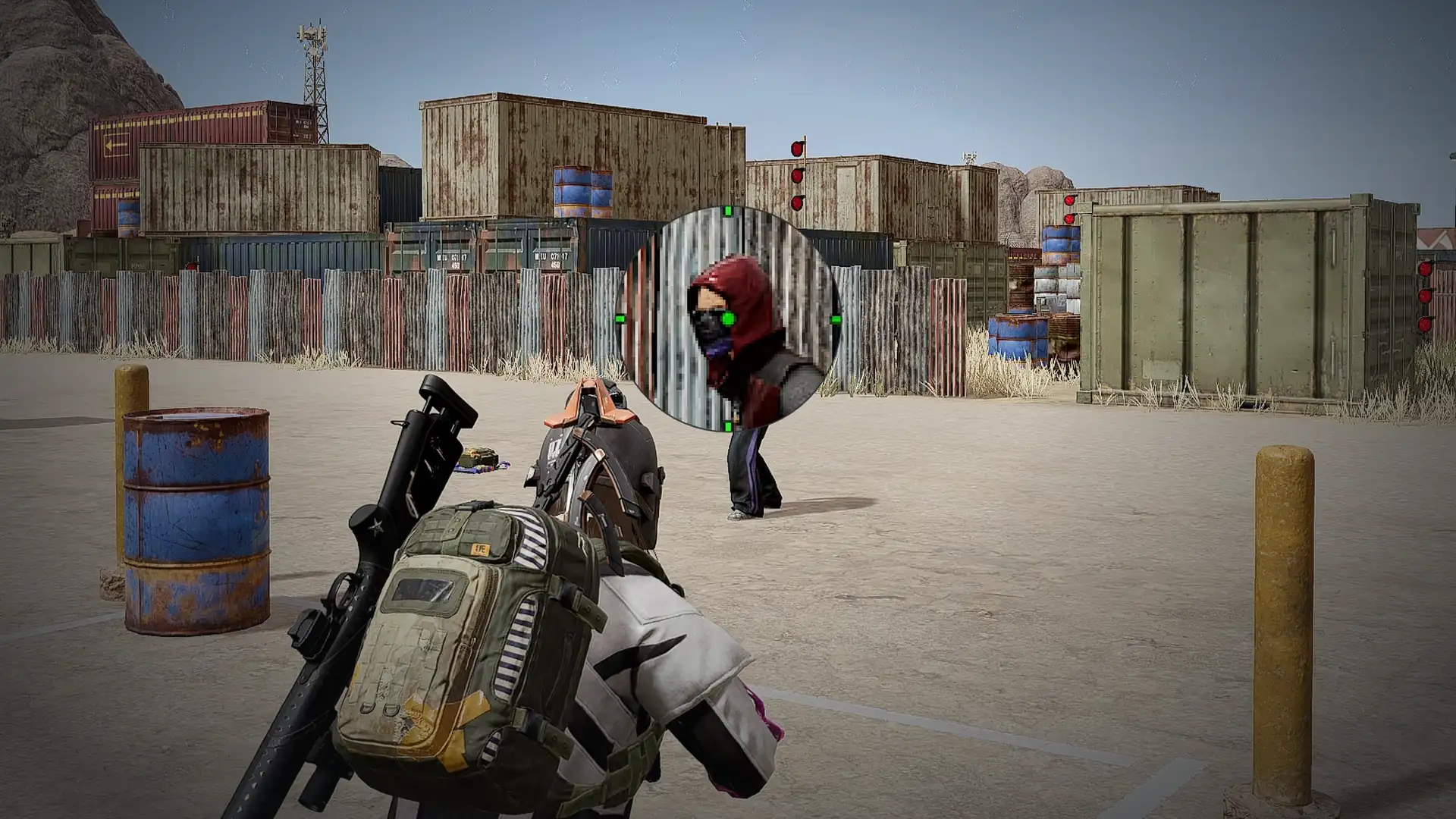

A zoom lens, pinned over your game.
Magnify the middle of the picture, a minimap, or wherever your pointer is, up to 16×. VectaZoom captures your game's own window, so the lens can sit right over what it magnifies.
USD 4.99 · one-time purchase · Windows 11
- Zoom
- 1× to 16× in quarter steps
- Region
- Center · fixed · cursor
- Show lens
- Always · held · toggled
- Account · data
- None · none
Put the lens anywhere you like.
Drag the lens, resize it from its corner, and try the app's settings. Like VectaZoom's Game window source, the lens is never part of its own picture, so it can sit right on top of the spot it magnifies. There is a sign on the ridge that only reads through the lens: try Fixed and go looking.
A browser preview of the lens. In the app it magnifies your game, pinned in Xbox Game Bar, and does no work at all while hidden.
See further. Aim the same.
The lens is never part of its own picture.
VectaZoom finds your game's window and captures it. Game Bar and the lens are never in that picture, so the lens can sit directly over the area it zooms without showing itself. With no game window to capture, it uses the whole display and masks the part under the lens instead of repeating it.
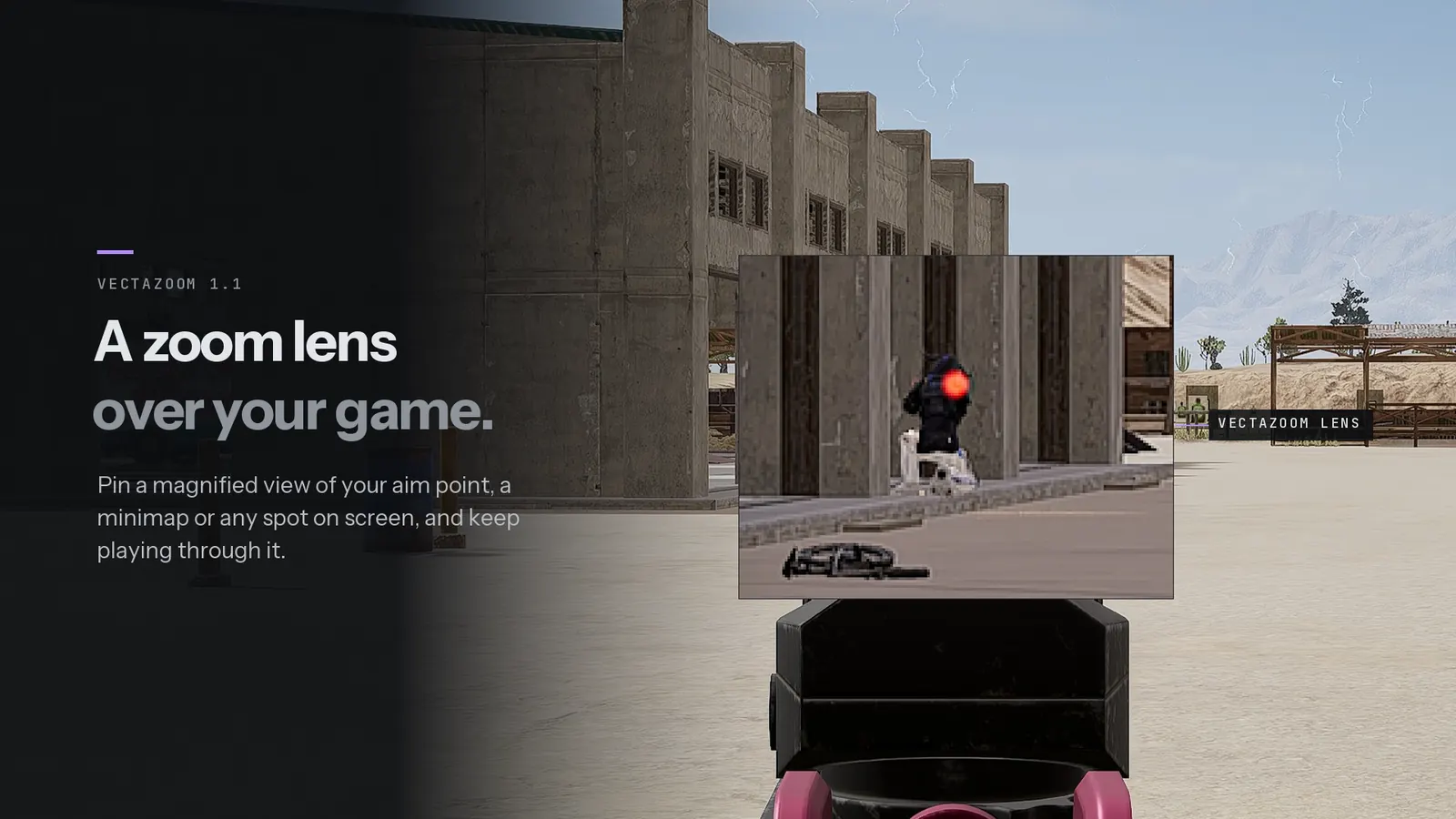
The middle, a minimap, or the pointer.
Magnify from 1× to 16×, with one-click buttons for 2×, 3×, 4×, 6× and 8×. Zoom the middle of the picture for your crosshair, place a fixed area for a minimap or readout, or follow the pointer. Square, rounded or circular lens, an optional dot or cross, and Sharp or Smooth scaling.
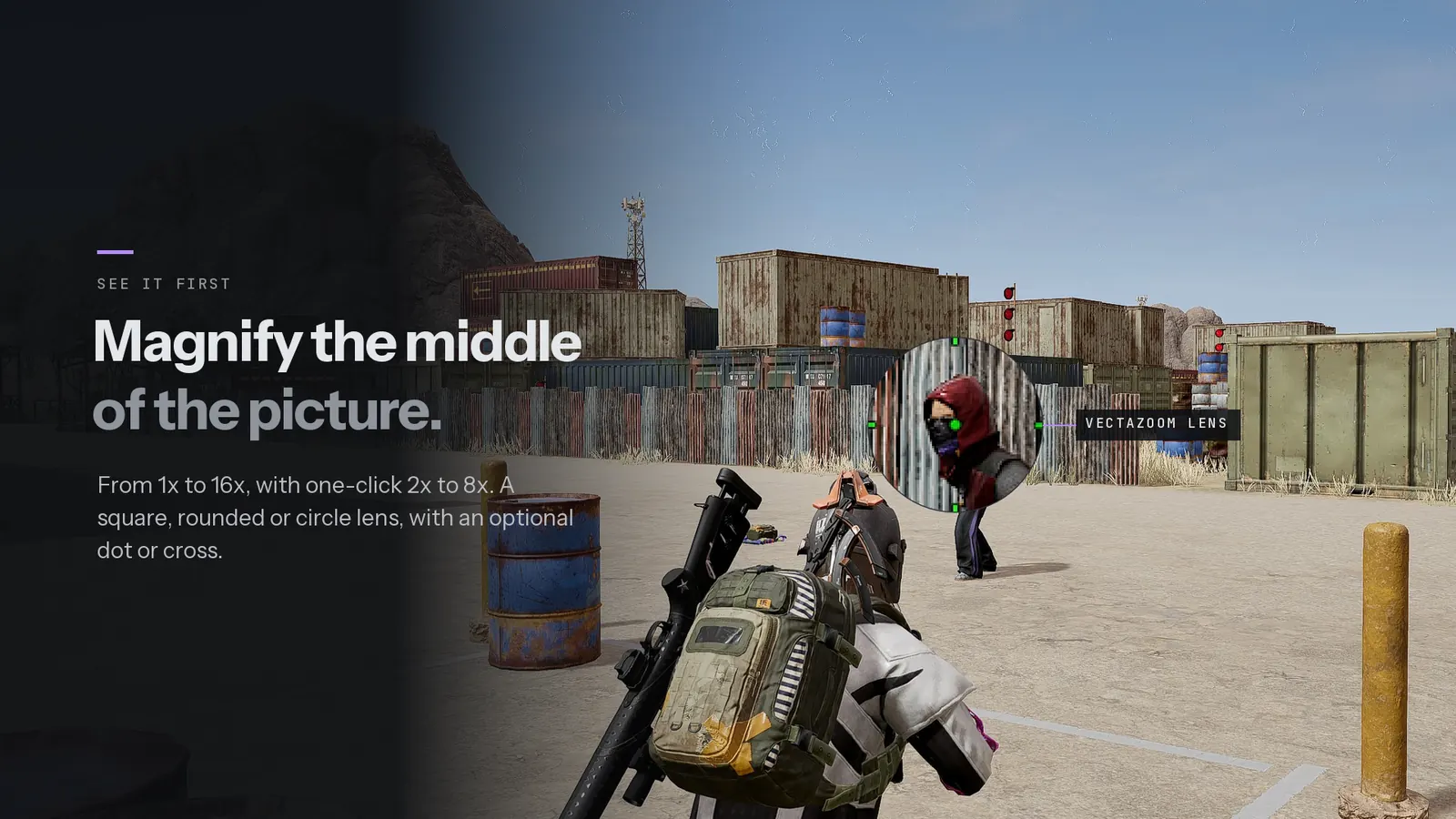
Scope in, then zoom further.
Put the lens over a scope and it magnifies what the scope already shows. Brightness, contrast and sharpen apply to the lens only, so you can lift a dark corner without touching the game.
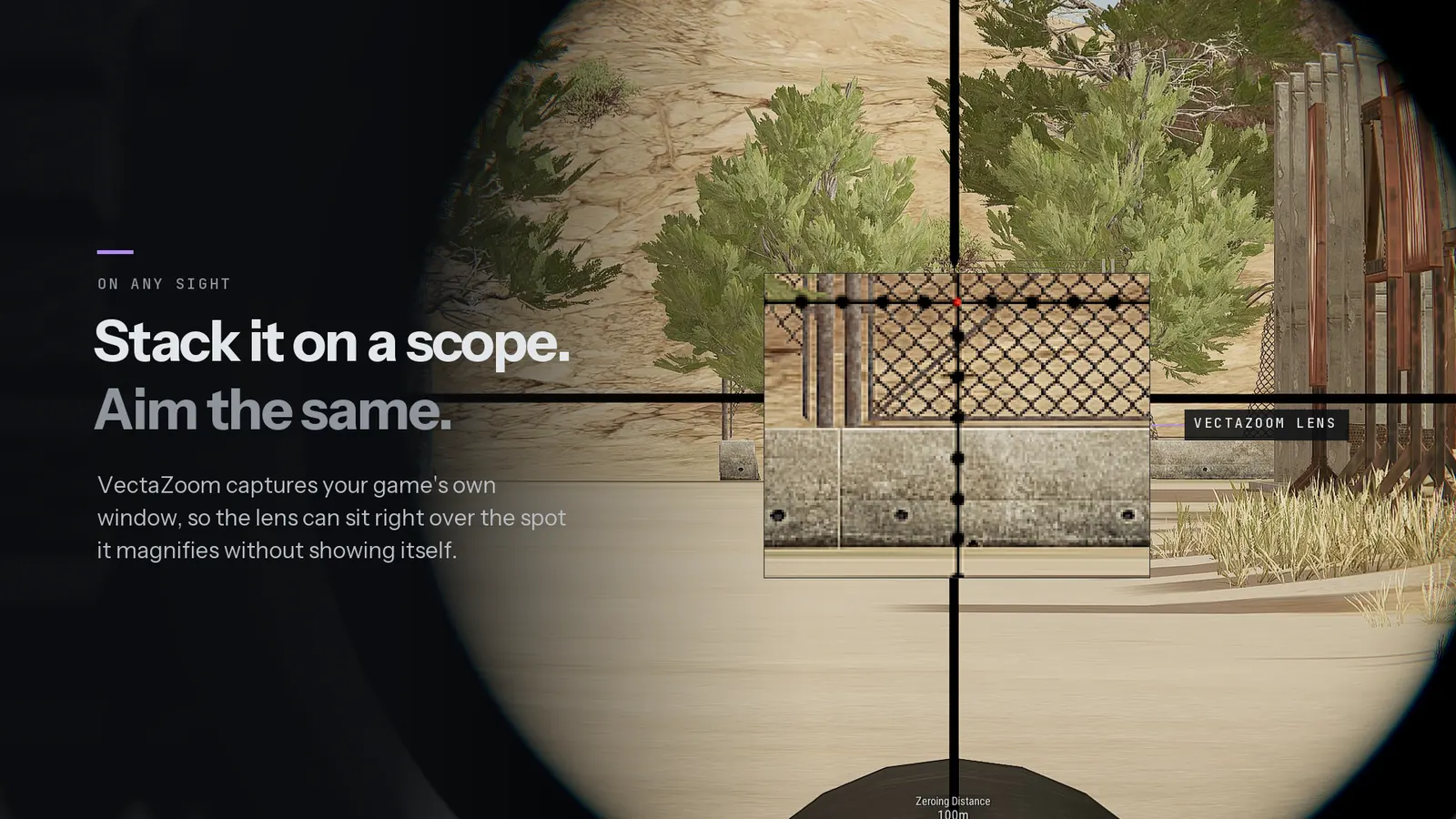
There when you need it, gone when you don't.
Show the lens all the time, only while you hold a key, or toggle it with a key. Separate keys step the zoom in and out mid-match. A hidden lens does no work at all.
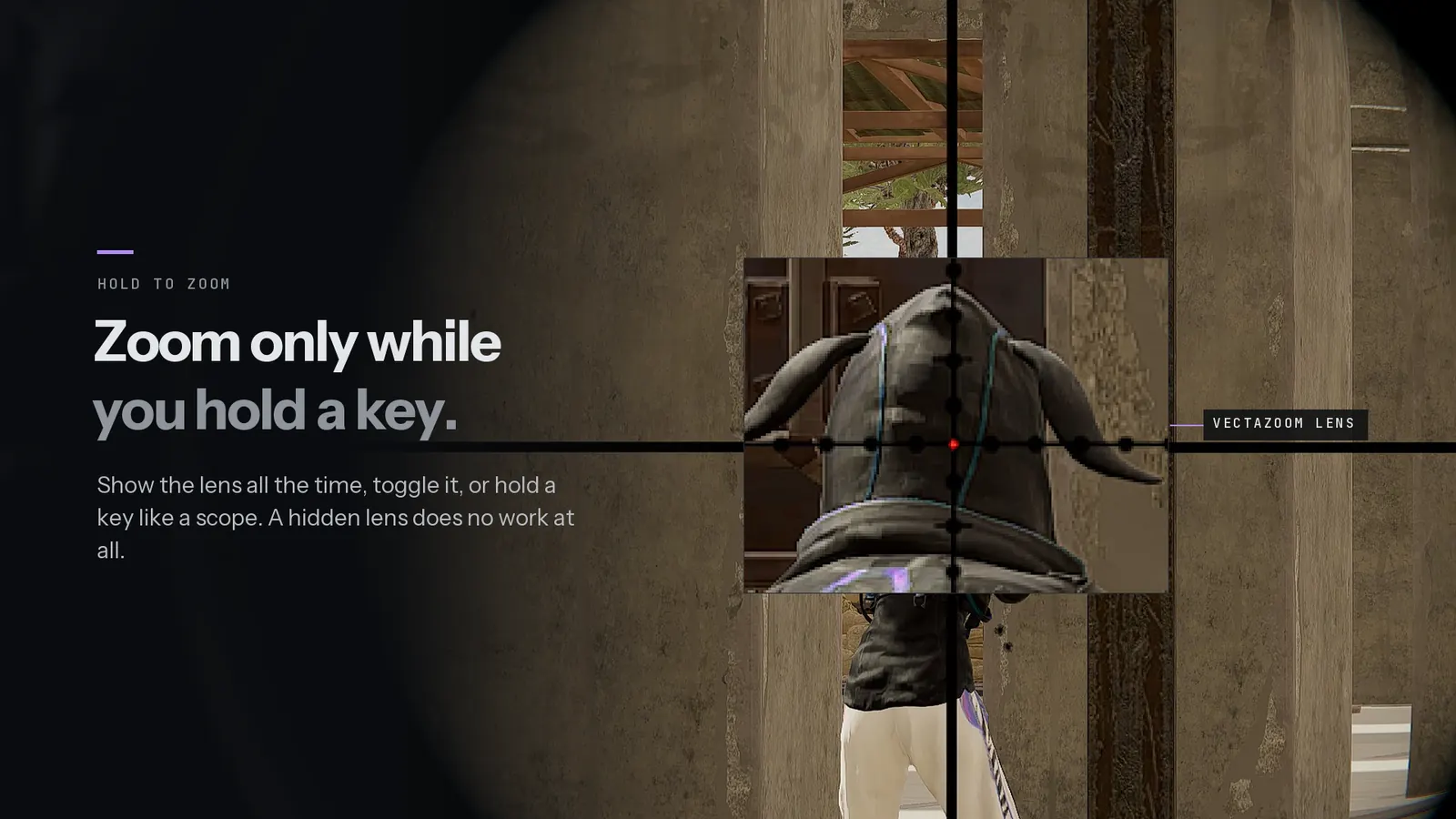
Drawn on the graphics card, with a frame-rate cap.
The lens draws on the GPU, stops completely when hidden, and lets you cap its frame rate. The settings show its frame rate and the time each frame takes. Keep separate zoom, region and lens settings for each game; VectaZoom switches when that game runs.
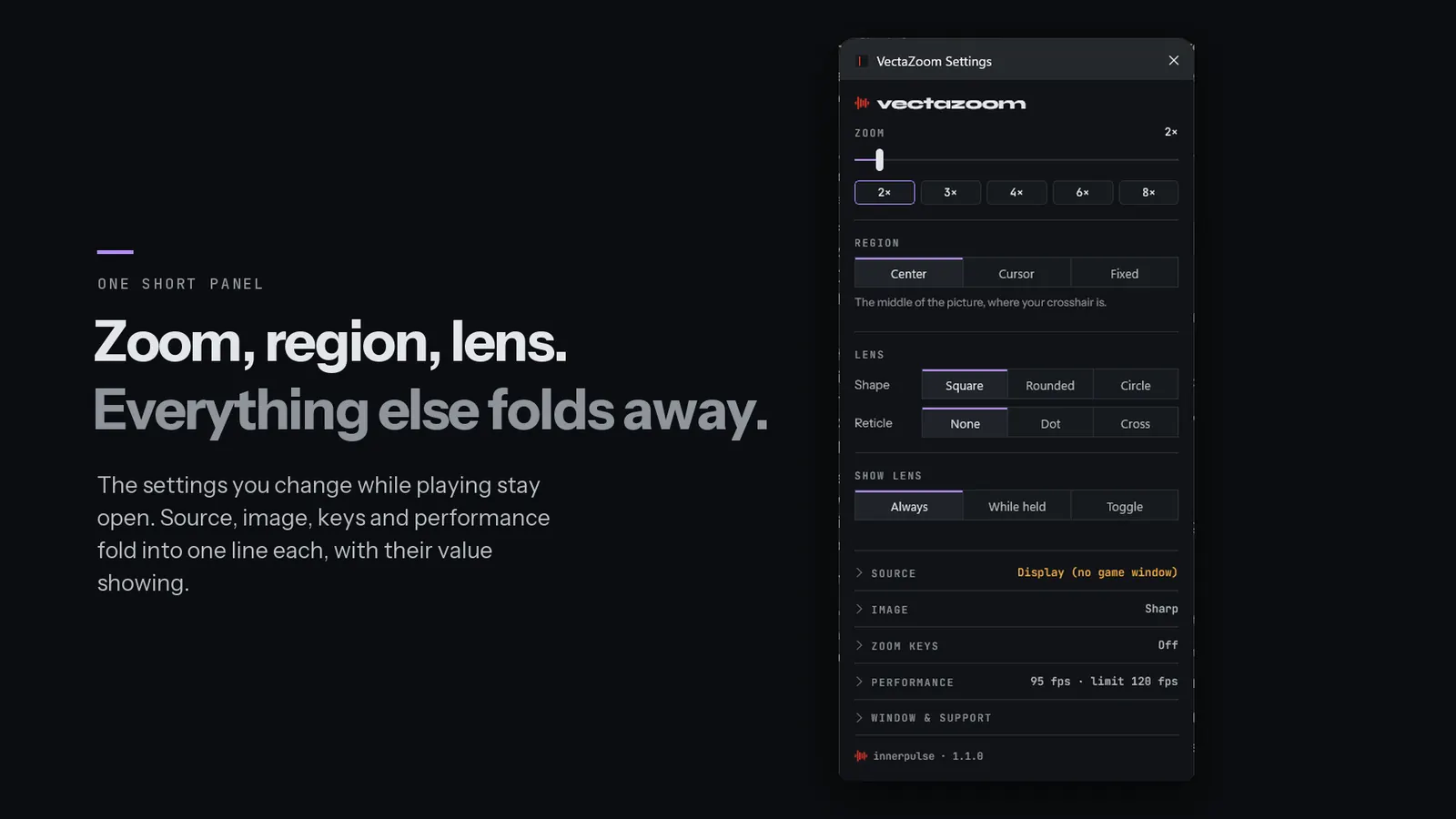
Set up in a minute.
Pin it once. Close the app.
The first time, Windows asks whether VectaZoom may capture the screen. Choose Yes: showing a magnified copy of your game is its only job.
- Press Win + GXbox Game Bar opens.
- Open the Widget MenuChoose VectaZoom. The lens appears on screen.
- Move, resize and pinClick the lens's pin so it stays after Game Bar closes.
- Turn on click-throughWith its button at the top of the screen in Game Bar.
- Choose zoom and regionFrom the settings button on the lens. Lost it? Reset lens puts it back in the middle.
VectaZoom FAQ
Why does VectaZoom need Windows 11?
It captures your game's window with screen-capture features that Windows 11 provides to Game Bar widgets. On Windows 10 the lens can't capture the screen.
Windows asks to let VectaZoom take screenshots. Is that safe?
Showing a magnified copy of the screen is the app's only function. Each frame is drawn into the lens on the graphics card and discarded; nothing is saved, recorded or sent, and the app has no network access. You can withdraw the permission in Windows Settings under Privacy & security, Screenshots and screen recording.
Part of the lens is hatched.
That happens with the Display source: the lens can't show what is directly under itself, so that part is masked instead of repeating. Use the Game window source, where the lens can sit anywhere, or move the lens off the area it magnifies.
Clicks hit the lens instead of the game.
Open Game Bar with Win + G, make sure the lens is pinned, then turn on click-through with its button at the top of the screen. Close Game Bar and your clicks pass through.
Can I zoom only while I hold a key?
Yes. Under Hotkeys, set Show lens to While held and choose a key. You can also toggle the lens with a key, and bind keys to step the zoom in and out.
Does the lens slow my game down?
The lens draws on the graphics card and stops completely while hidden. If your frame rate drops with it on, lower the lens's frame-rate limit in its Performance settings, and leave brightness, contrast and sharpen at 0 for the lowest cost.
Look closer. Stay on target.
VectaZoom is USD 4.99 on the Microsoft Store: a one-time purchase for Windows 11, updated by the Store.